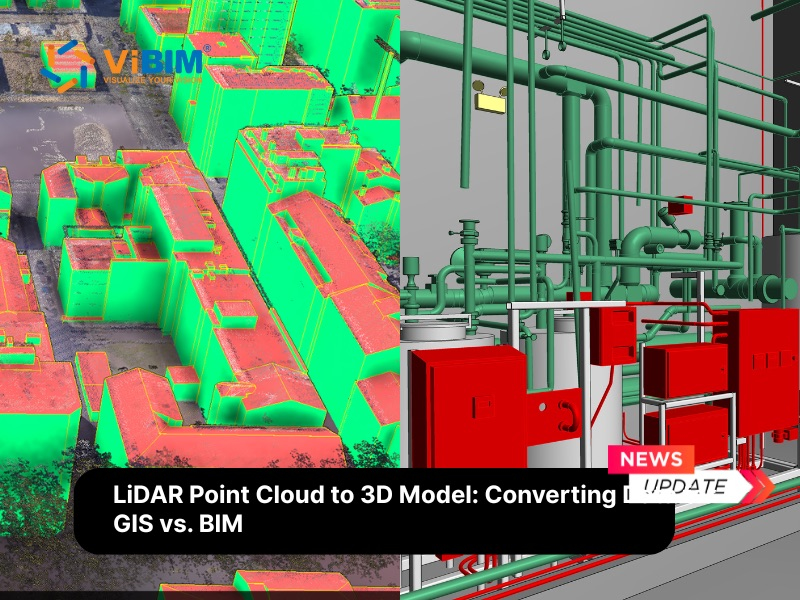
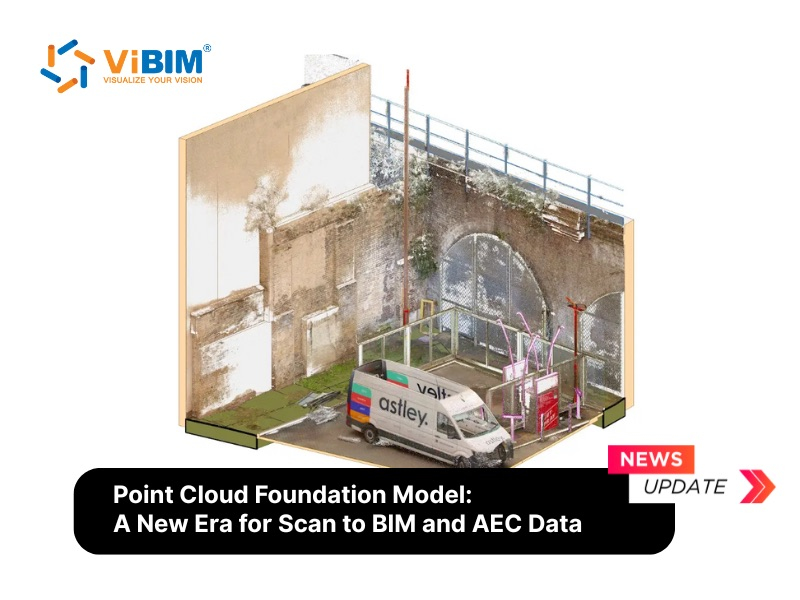
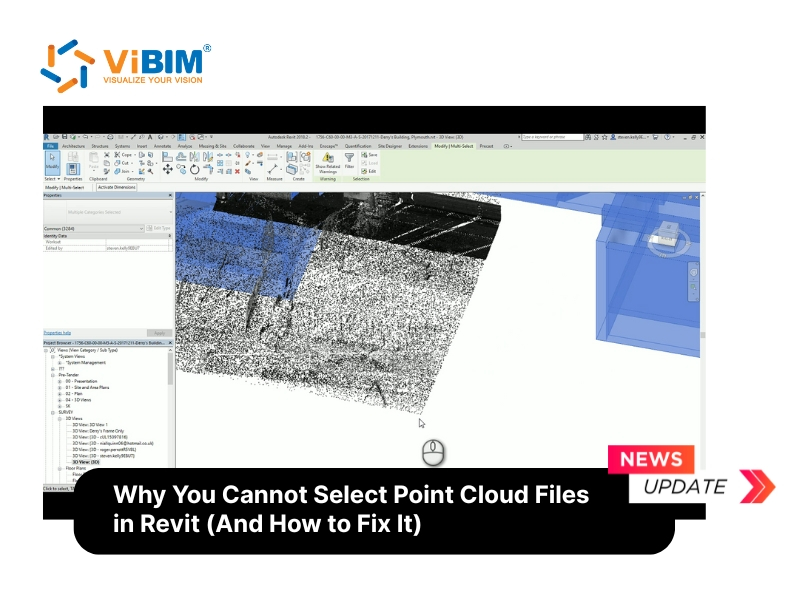
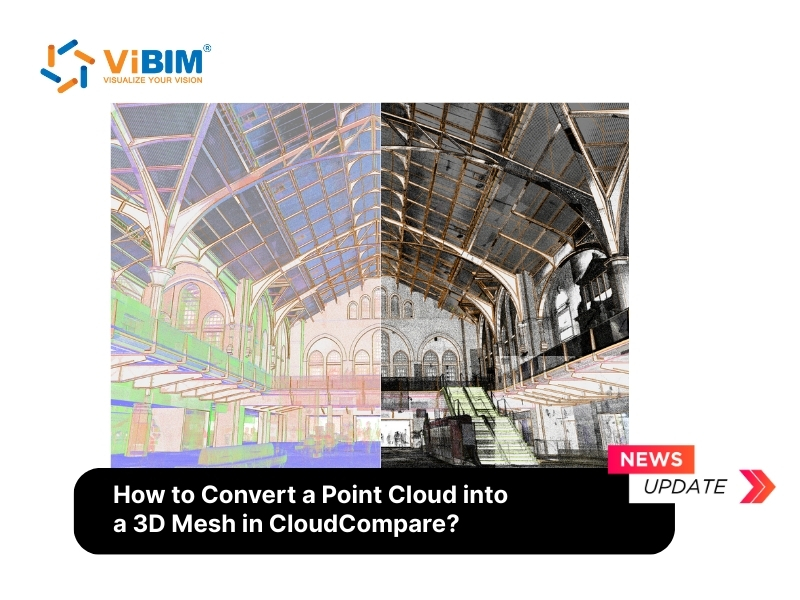
Converting a point cloud into a 3D mesh model is the process of transforming raw spatial data points (XYZ coordinates) into a continuous polygonal surface. This critical transformation is necessary to make the data usable for rendering, game engines, or Scan to BIM workflows, as raw point clouds are often too heavy and unwieldy for standard BIM or CAD software.
CloudCompare is an open-source 3D point cloud processing software known for its efficiency in handling massive datasets. It offers robust algorithms for surface reconstruction, specifically Poisson Surface Reconstruction, which allows users to generate watertight meshes from noisy point cloud data.
The conversion workflow consists of several technical stages, ranging from initial cleaning and subsampling to computing normals and applying surface reconstruction algorithms. In this guide, ViBIM walks you through the essential structure of this process to help you convert a raw 3D point cloud model into a clean, high-quality 3D mesh model using CloudCompare.
Step 1: Import and Preprocess the Point Cloud in CloudCompare
Before generating a mesh, you must prepare the raw data. Point clouds often contain noise, outliers, and excessive data density that can hinder the meshing process. Preprocessing ensures the final mesh is clean and geometrically accurate.
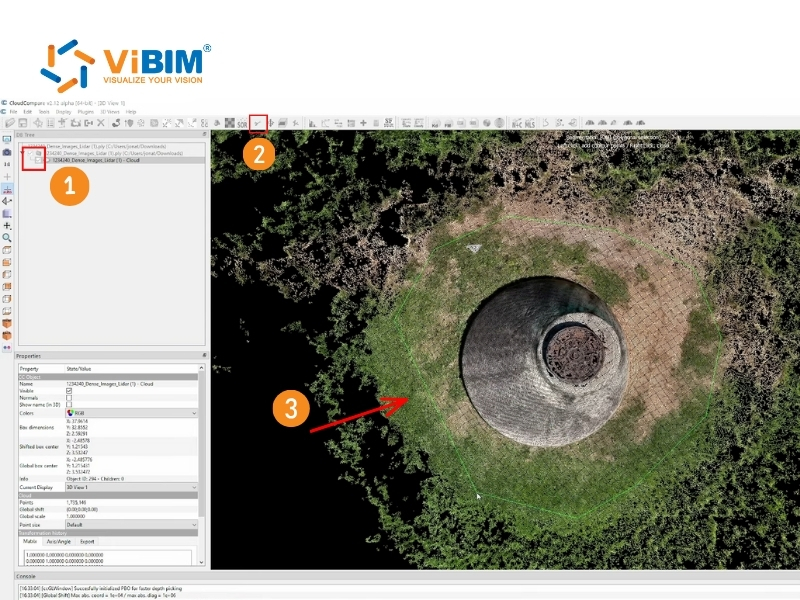
Step 1.1: Launch CloudCompare and import your file
- Open CloudCompare
- Go to File > Open and select your point cloud file (.ply, .las, etc.). Loading may take a few minutes for large files.
- Use the mouse to navigate the scene once the point cloud appears in the 3D view.
- Rotate the view with a right-click drag, pan with a middle-click drag, or zoom using the scroll wheel.
If your point cloud has large coordinates (common in georeferenced survey data), CloudCompare will suggest a “Global Shift.” Always accept the suggested shift to preserve precision during processing. CloudCompare processes data more accurately when coordinates are closer to the origin (0,0,0).
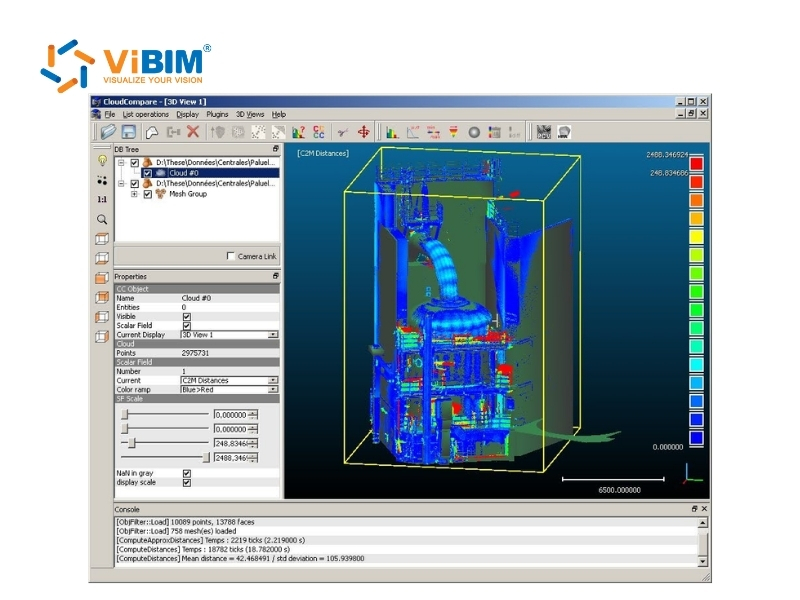
Step 1.2: Remove noise and outliers
Raw scans often contain “ghost points”, which are reflections from windows, dust, or sensor errors. These stray points will confuse the meshing algorithm. To remove these distractions and refine the cloud, you can take these four specific actions:
- Select the point cloud in the DB Tree (left panel) so a yellow outline appears.
- Go to Tools > Clean > Noise Filter to apply the automated noise filter (this is the default option and easy for most cases). Alternatively, if the Clean tool is available under Plugins (check if you’ve installed it), use that for additional customization, such as finer parameter adjustments on complex noisy data.
- For manual removal: Use Edit > Segment to draw a polygon around unwanted areas and delete them.
Tip: If the cloud has colors, enable them in Properties > Colors for better visualization.
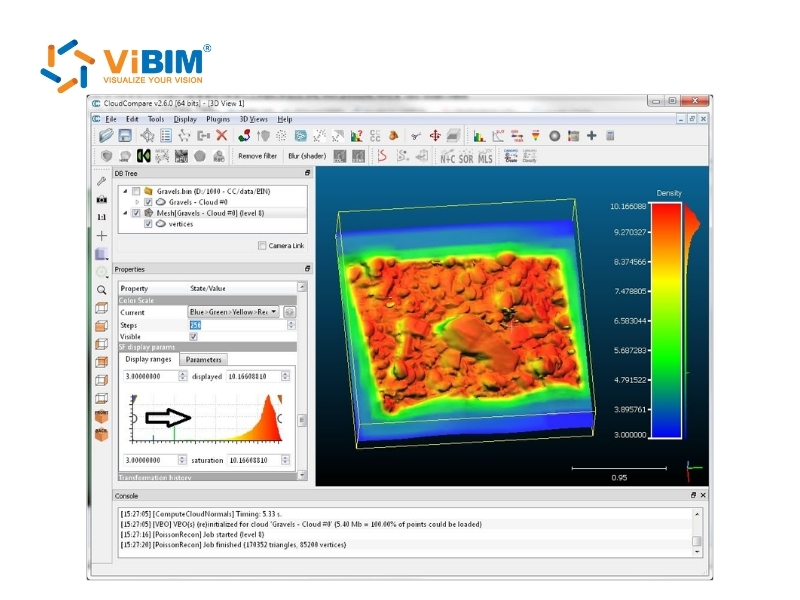
Step 1.3: Downsample (subsample) to reduce points
High-density clouds (e.g., 50 million points) create computationally heavy meshes. So, subsampling can reduce the point count while maintaining geometry. To downsample the dense cloud while keeping the structure intact, you must use the following method:
- With the cloud selected, go to Edit > Subsample.
- In the dialog, set “min. space between points” (e.g., 0.01 meters for a building scan). This reduces points while preserving detail—aim for 500,000 to 1 million points for most cases.
- Click OK. A new subsampled cloud appears in the DB Tree. Select it and hide/delete the original to save memory.
- Check point count in the Properties window (bottom left).
Step 1.4: Align if multiple clouds (optional)
If your project consists of multiple separate scans that are not registered, you must align them before meshing.
- Select two point clouds (one as reference, one to align).
- Use the Fine registration (ICP) tool located in the toolbar.
- Ensure the RMS (Root Mean Square) error is low to guarantee high accuracy.
Step 2: Compute Normals
A 3D mesh requires surface orientation data to determine which side of the polygon faces “out.” Raw point clouds typically lack this information. You must compute normals (vectors perpendicular to the surface) for the point cloud before generating a mesh.
- Select the subsampled point cloud.
- Go to Edit > Normals > Compute.
- Select the Surface approximation method:
- Plane: Best for flat surfaces (walls, floors).
- Triangulation: Best for complex, organic shapes.
- Quadric: Good balance for curved architectural features.
- Set the Radius. This defines the local neighborhood used to calculate the normal for each point. A larger radius creates smoother normals but may smooth out sharp corners. Auto or 5–10x your subsample spacing (e.g., 0.05–0.1).
- Orientation: Use “Minimum Spanning Tree” (MST) with a high KNN (K-Nearest Neighbors) value (e.g., 10-20) to ensure consistent orientation across the model.
- Click OK. The point cloud will change appearance, showing shading based on lighting direction.
Note: If the normals are inconsistent (some facing in, some out), the resulting mesh will have holes or inverted faces.
Step 3: Generate a Mesh Using Poisson Surface Reconstruction
CloudCompare utilizes the Poisson Surface Reconstruction algorithm (plugin) to create a watertight mesh from oriented points. This algorithm mathematically fits a surface to the points, making it ideal for creating solid 3D models.
Now use the Poisson Surface Reconstruction plugin to convert point cloud to a mesh:
- Select the point cloud that contains your computed normals in the DB Tree (left panel) to ensure the plugin uses the correct input data.
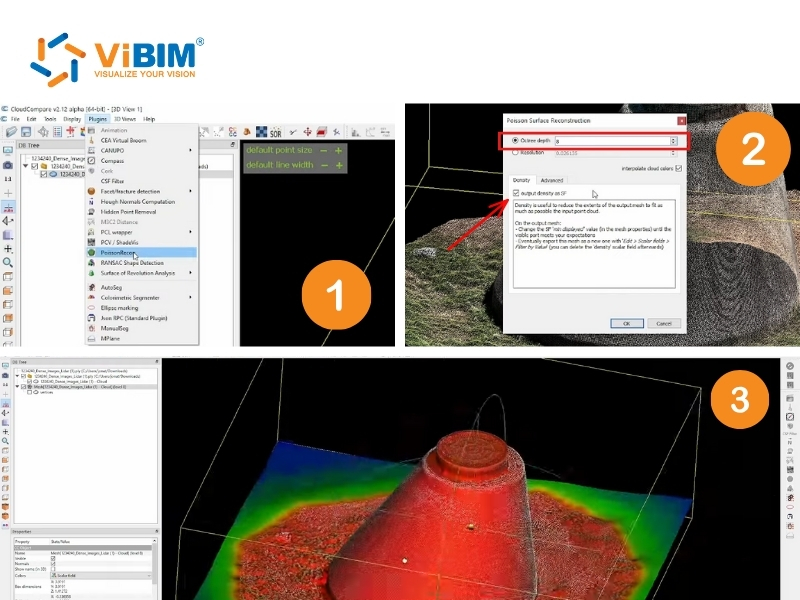
- Navigate to the Plugins menu and choose PoissonRecon to launch the reconstruction interface immediately.
- Configure the Octree depth between 8 and 12, as higher values, such as 10, yield more detail but significantly increase processing time.
- Check the “Output density as SF” box so the software generates a scalar field we can use for trimming later.
- Optionally, adjust Samples per node to 1-5 (default is 1.0) if your data has varying density and needs finer control in crowded areas.
- Click OK to start the calculation, and wait a few minutes for the new mesh to appear in the DB Tree.
After reconstruction, the mesh displays in the 3D view as a triangular surface, often in a default gray shade with basic shading for visibility. If you enable the density SF, switch to it in the Properties window (bottom-left) under SF display params to apply a color map —this helps visualize structural integrity and identify areas for trimming.
You can customize the color ramp manually in the Properties (e.g., via the histogram graph) for better inspection, as CloudCompare prioritizes user preferences over fixed defaults. Here’s a common optional configuration for the density SF color map:
- Red: High-density areas, where the data is most reliable and accurate.
- Yellow, Orange, or Blue: Low-density zones, often noise, extrapolated geometry, or less reliable parts that you may want to remove for your final model.
Notes: If the process fails (e.g., due to missing normals or insufficient RAM), an error message will appear—double-check your point cloud’s normals and try a lower octree depth.
Step 4: Clean Up and Trim the Mesh in CloudCompare
The scalar field helps you remove unreliable parts of the mesh because the algorithm marks low-density areas clearly. Designers can use this density data to filter out extrapolated geometry that does not belong to the actual scanned object. To strip away the noise and finalize the structure, you should perform these finishing moves:
- Select the newly created mesh in the DB Tree to begin the refinement process.
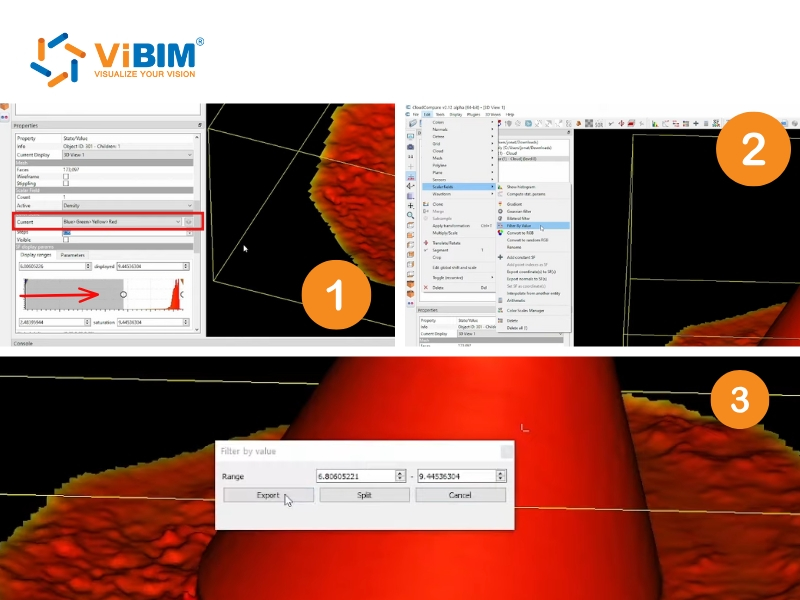
- Scroll to the Color Scale section in the Properties panel and set the ramp to Blue, Green, Yellow, and Red.
- Drag the lower threshold slider until only the dense red, orange, or yellow regions remain visible in the viewport.
- Go to Edit > Scalar Fields > Filter by Value. to make these visual changes permanent.
- Use the current range from the SF display parameters so the filter matches exactly what you see on the screen.
- Click Split to generate two separate meshes where one contains the kept polygons and the other holds the discarded noise.
- Delete the mesh containing the unwanted parts and keep the clean version like “mesh.part” for further processing.
- Go to Edit, select Mesh, and choose Fill holes to close any small gaps that appear in the surface.
- Simplify the model by going to Edit, Mesh, and Simplify if the polygon count remains too high for your downstream software.
Step 5: Export from CloudCompare and Import to Blender for Further Editing
You can finally move the model out of CloudCompare because software like Blender offers better sculpting tools for the finishing touches. To transfer the data and polish the geometry, you should follow these specific transfer steps:
- Select the final mesh in the DB Tree
- Go to File> Save to export the object.
- Choose .OBJ if you need textures (ensure the file includes UV or material maps because the format requires these externally linked images to display textures), .STL for 3D printing, or .PLY as a standard alternative.
- Import to Blender:
- Open Blender and delete the default cube by selecting it and pressing X.
- Go to File, hover over Import, and select the Wavefront (.obj) option or the equivalent format for your specific file.
- Switch to Edit Mode by pressing the Tab key so you can access the geometry directly.
In Blender, you can use specific tools to refine the shape depending on your project needs:
- Sculpt Mode allows you to smooth out rough patches, while the Decimate Modifier helps reduce the polygon count efficiently.
- Select any open edges and press F to fill holes that might have survived the CloudCompare process.
- Convert vertex colors to UV textures via the Materials tab because the colors import differently than standard image maps.
- Apply Retopology tools or add-ons like Quad Remesher if the model is intended for animation or game engines.
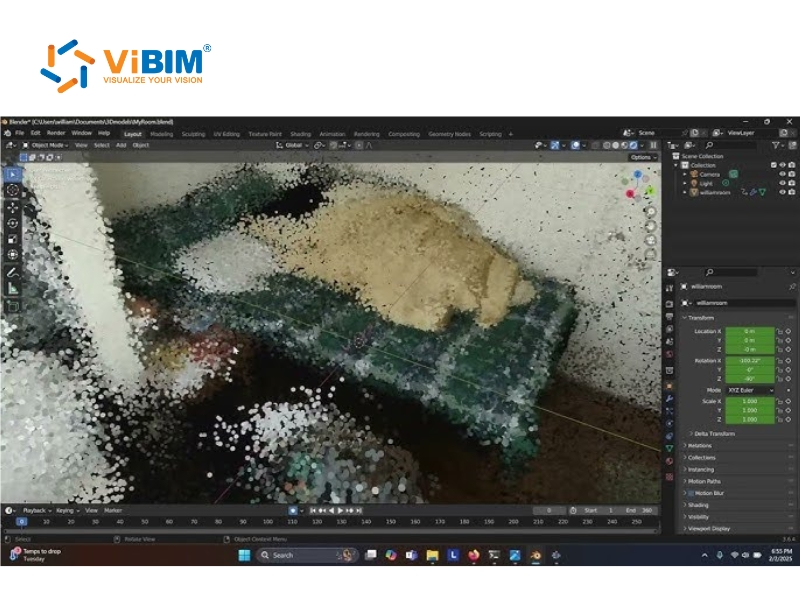
Once your mesh is clean, you can elevate your project’s technical value by following our workflow to convert a Revit point cloud into an intelligent, parametric BIM model ready for facility management and construction documentation.
To understand the process easier, watch this video:
While converting point clouds to meshes helps with visualization, high-accuracy projects in the AEC industry often require BIM modeling with point clouds. This process involves creating parametric BIM models (in software like Revit) directly from point cloud data, ensuring the geometry carries semantic information and data attributes suitable for construction and facility management.
At ViBIM, we specialize in this precise transition. We focus on providing commercial point cloud modeling services, using Revit to deliver LOD 200 to LOD 500 models with 99% on-time delivery. You can rely on our expertise for complex engineering projects. Readers should contact us today to discuss Revit modeling outsourcing services and receive a complimentary quote.
Vietnam BIM Consultancy and Technology Application Company Limited (ViBIM)
- Headquarters: 10th floor, CIT Building, No 6, Alley 15, Duy Tan street, Cau Giay ward, Hanoi, Vietnam
- Phone: +84 944 798 298
- Email: info@vibim.com.vn